
Role management
Process roles control what users or groups can see and which actions they can perform within a process context. Each role defines a specific set of permissions and access levels for actors (users or groups) interacting with processes.
There are two types of process roles:
- Global
- Process-bound
Global roles can function outside the process lifecycle and are valid across all processes in which they are defined.
Process-bound roles, as the name indicates, are valid only within their specific process context and cannot be used elsewhere. This separation provides both broad, system-wide permissions and granular process-specific access control throughout the application.
Process Role View
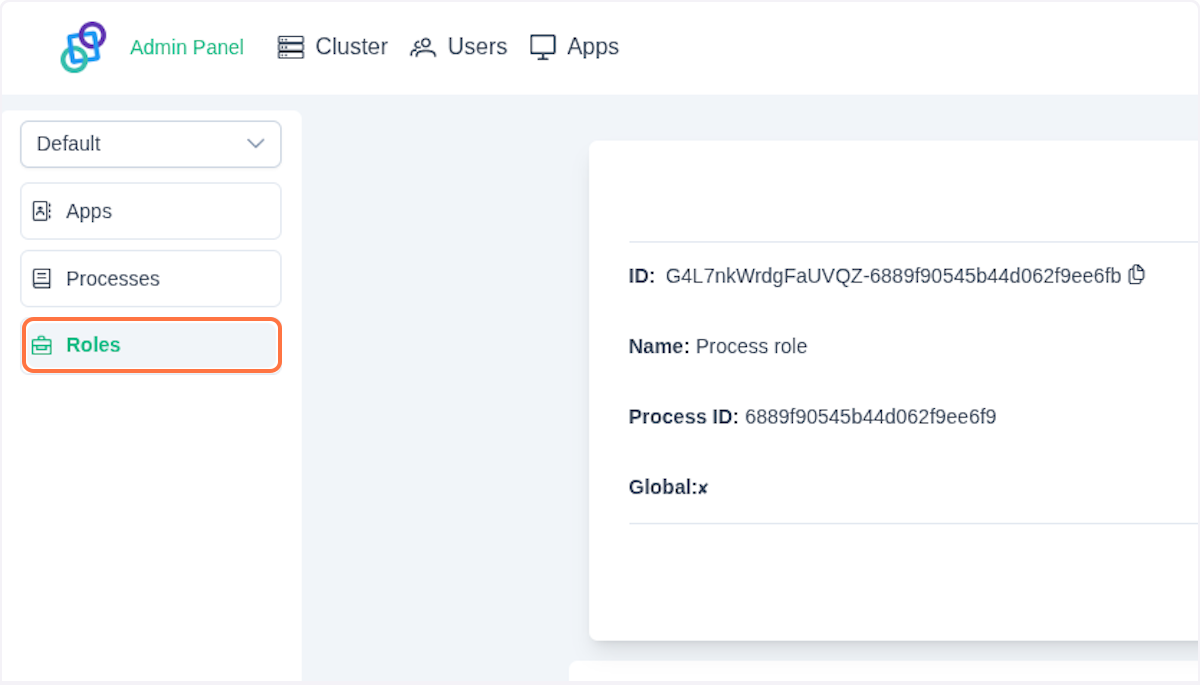
Navigate to Roles in the Admin Panel. Make sure you are currently in the Apps section in the top navigation menu.
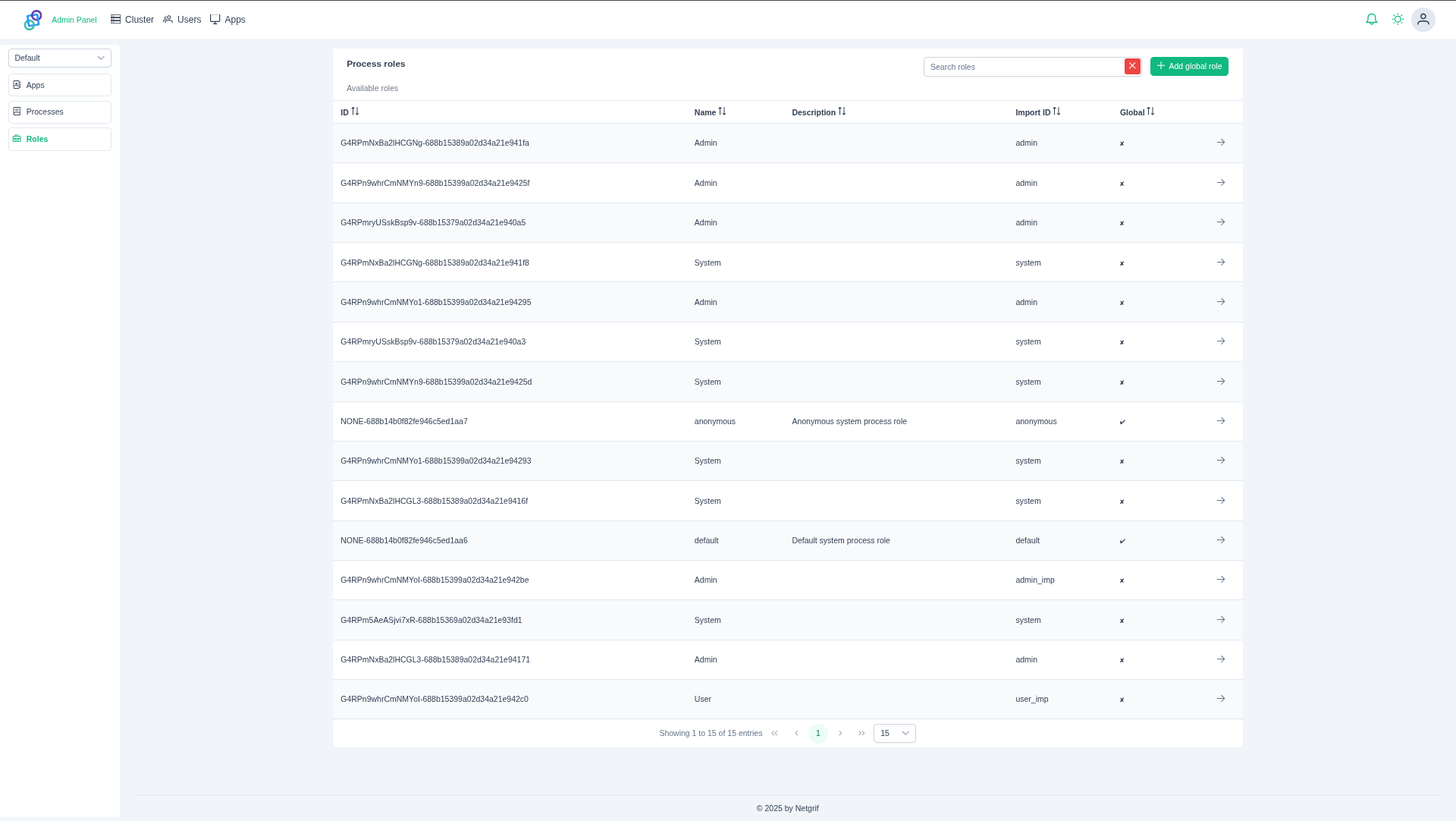
A list with all process roles that are currently deployed in your cluster should display. You can distinguish the global and non-global roles by the Global flag in the last column.
Clicking the button will take you to the role detail view.
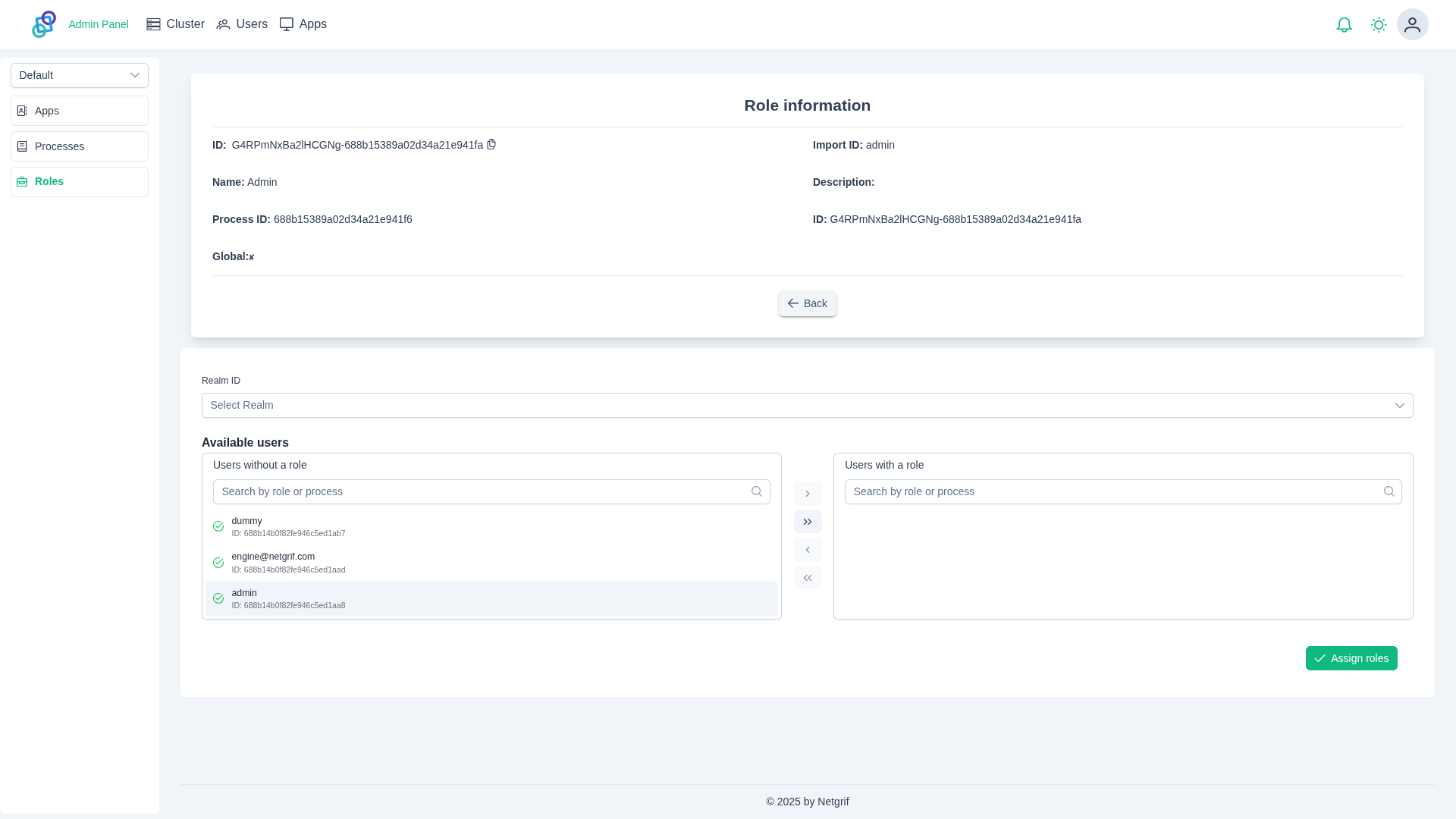
You can assign the role to users in the bottom section. Select a user from the list in the left column.
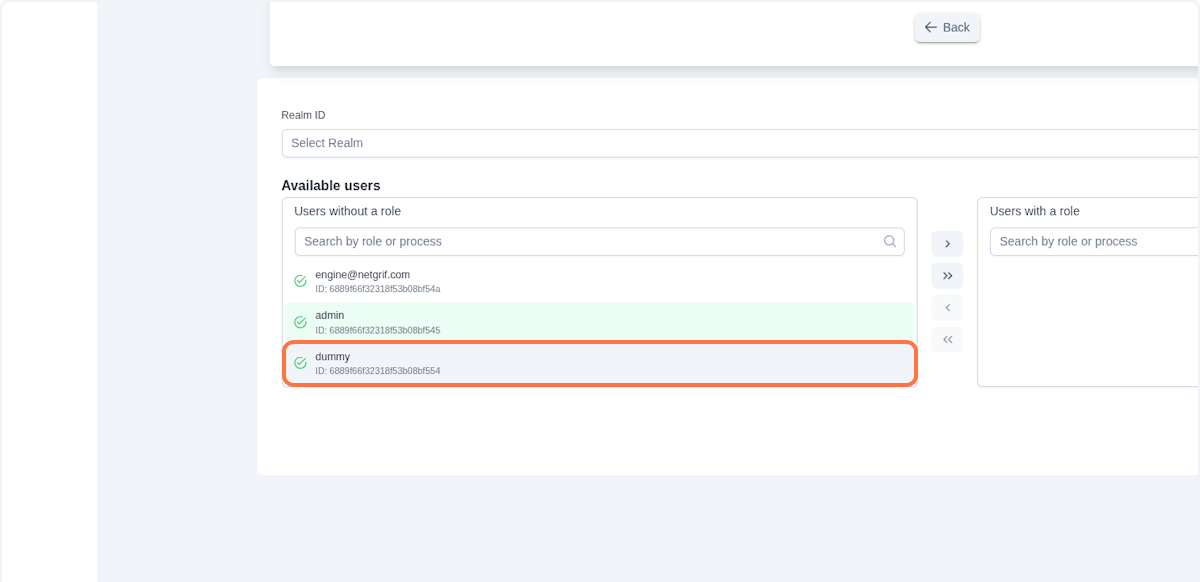
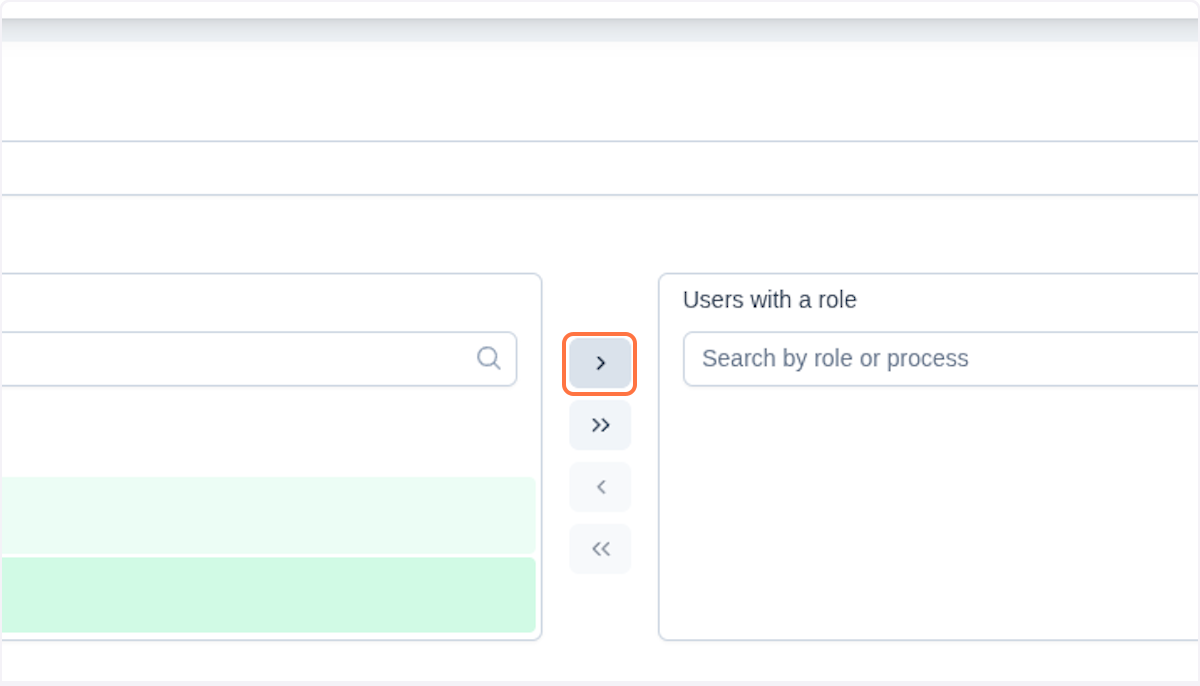
Then assign the role by clicking . This will append the user to the right column.
Finally, you need to click Assign roles to confirm you changes.
Create a New Role
You can create a new global role by clicking Add global role in the Roles section in the Admin panel.
In the dialog window, fill in the following fields:
- Role Import ID - Role ID that will be added under the
globalprefix - Name - The name of your role
- Description - A brief explanation of the role's purpose
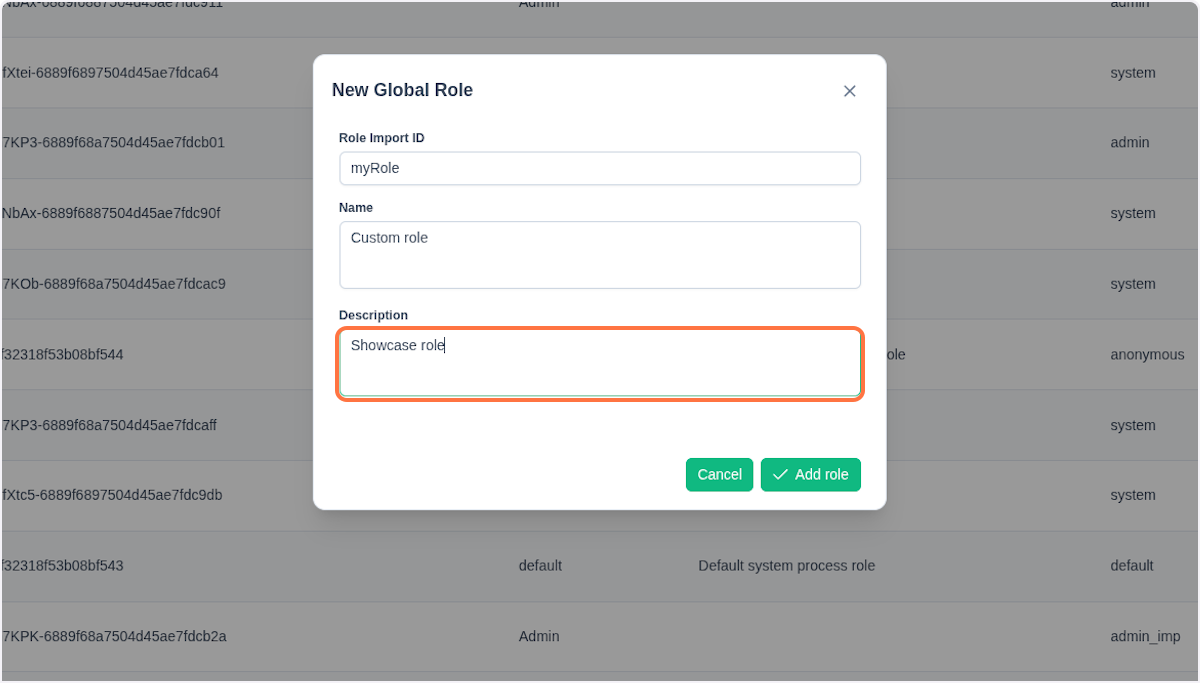
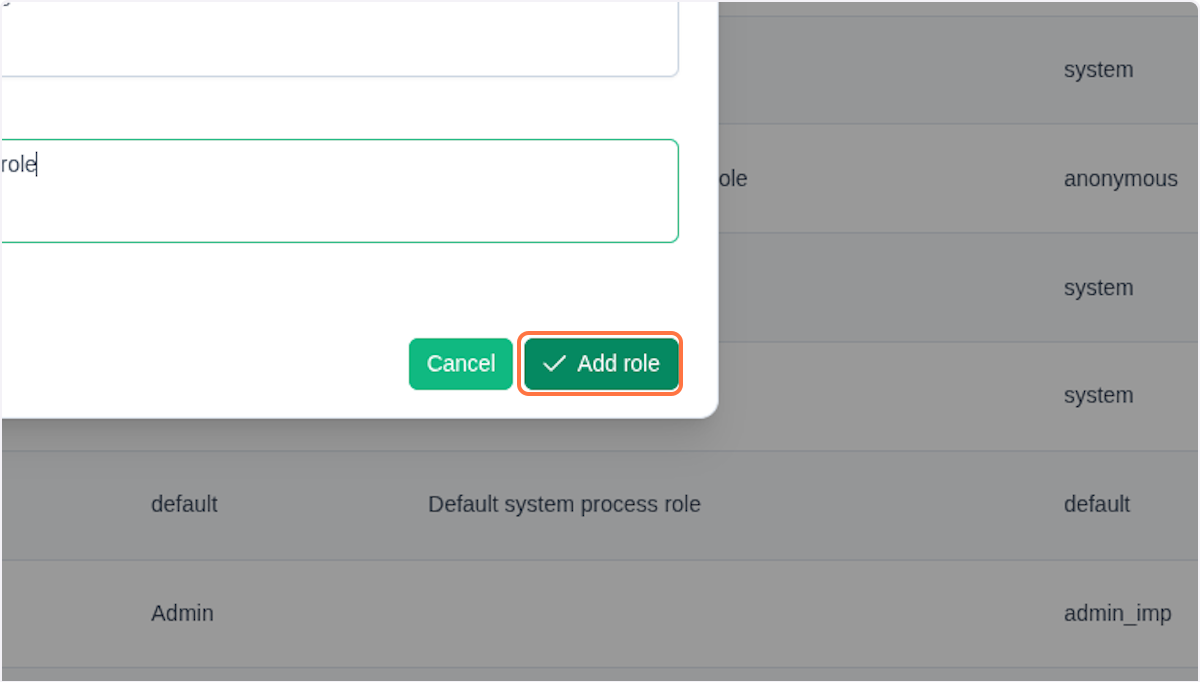
Confirm the creation of the new role by clicking the Add role button.
NOTE
In the Admin Web Console, you can create only global roles. To create a process-bound role, you must define it directly in the process using the role element.