Administration (Admin App)
This section describes how to use the Admin App to manage applications, users, clusters, and settings in the Netgrif Platform.
What is the Admin App?
The Admin App is a web-based tool designed for platform administrators. It provides full control over:
- Applications (uploading, deploying, assigning)
- Users and groups
- Cluster nodes and deployment
- System monitoring and logs
- URI and realm management
Logging In
Access the Admin App using your administrator credentials.
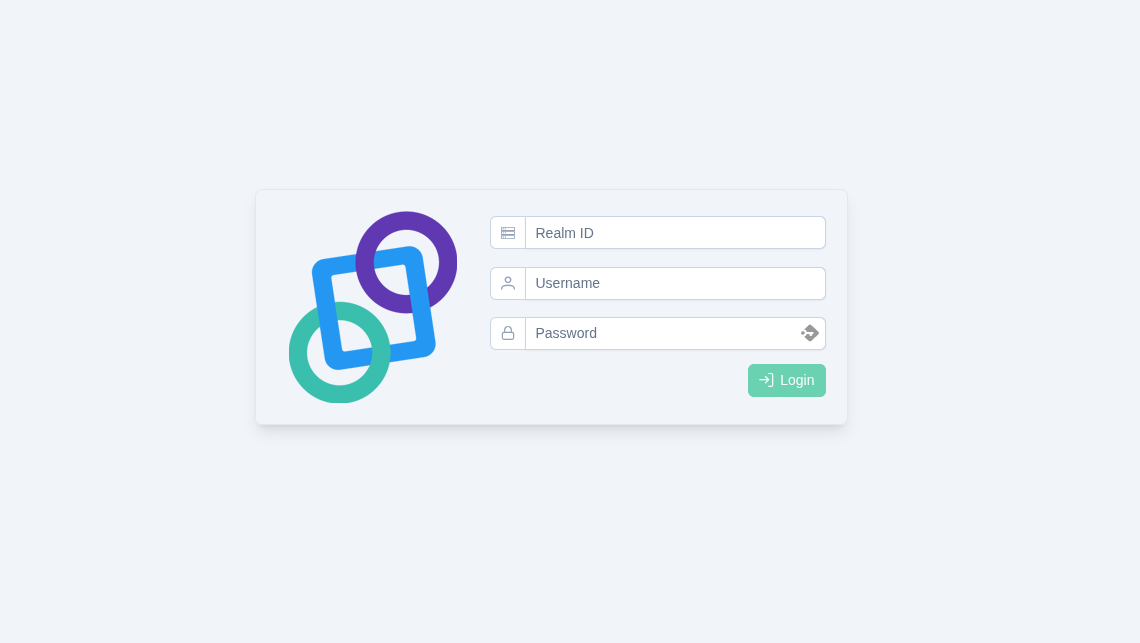
After logging in, you’ll be redirected to the default dashboard or application management screen. In the highlighted orange square in the illustration below, you can see your current cluster architecture map. 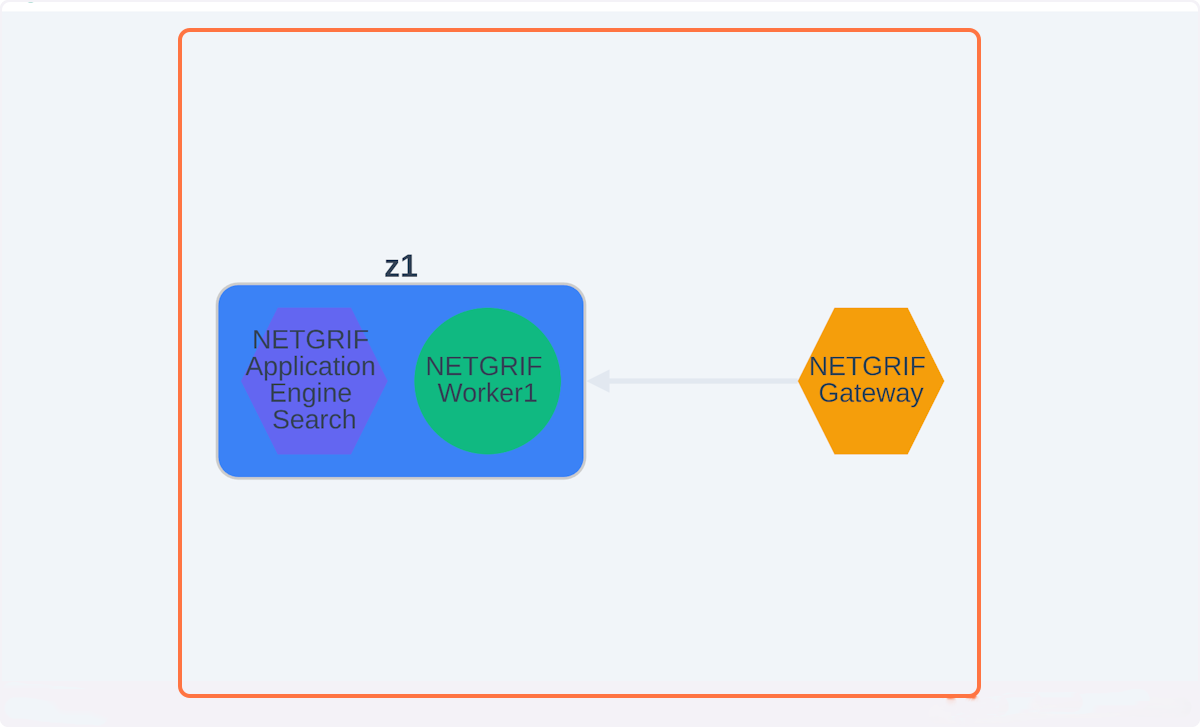
You can return to this page by clicking on the Netgrif logo
Main Sections of the Admin App
Applications
- Upload new application ZIPs
- View application metadata and status
- Assign processes and cases to workers/nodes
- Redeploy, delete, or rollback applications
Users and Groups
- List all platform users
- Assign users to roles or groups
- Create, edit, or remove users
- Integrate with external identity providers (LDAP, Keycloak)
Realms and Authentication
- Manage authentication backends
- Add or configure realms (e.g., for multi-tenant setups)
- Choose login mechanisms (Basic, LDAP, etc.)
Cluster Management
- Monitor available nodes
- Assign workloads to specific nodes
- Track node performance and availability
URI Management
- Define friendly URIs for deployed processes
- Enable deep linking to frontend tasks or case views
Monitoring and Logs
- Check application deployment status
- View system logs, errors, and warnings
- Track runtime behavior and troubleshooting info
Uploading and Deploying Applications
- Go to Applications
- Click Upload Package and select your
.zipfile - System extracts and validates
manifest.xml - Assign each process and import it to a worker node
- Click Deploy to activate the app
If the deployment succeeded, the new application will appear as Active. If any issues occurred, it will be marked as Failed.
Managing Users
- Navigate to Users
- View all current users and groups
- Click Create User to add new accounts
- Assign roles or connect users to specific realms
You can also reset passwords, disable user accounts, or update user metadata.
Working with Realms
- Go to Realms
- View all configured realms
- Add a new realm for a different provider (e.g., Keycloak)
- Map realm attributes to user profiles
Monitoring and Logs
- Use the Monitoring tab to view real-time logs
- Filter by time, level (info/warning/error), and component
- Check logs after deployments to verify behavior
Best Practices
- Always test applications before deploying to production
- Keep user roles tightly scoped
- Monitor node activity to prevent overload
- Use logs for audit and diagnostics